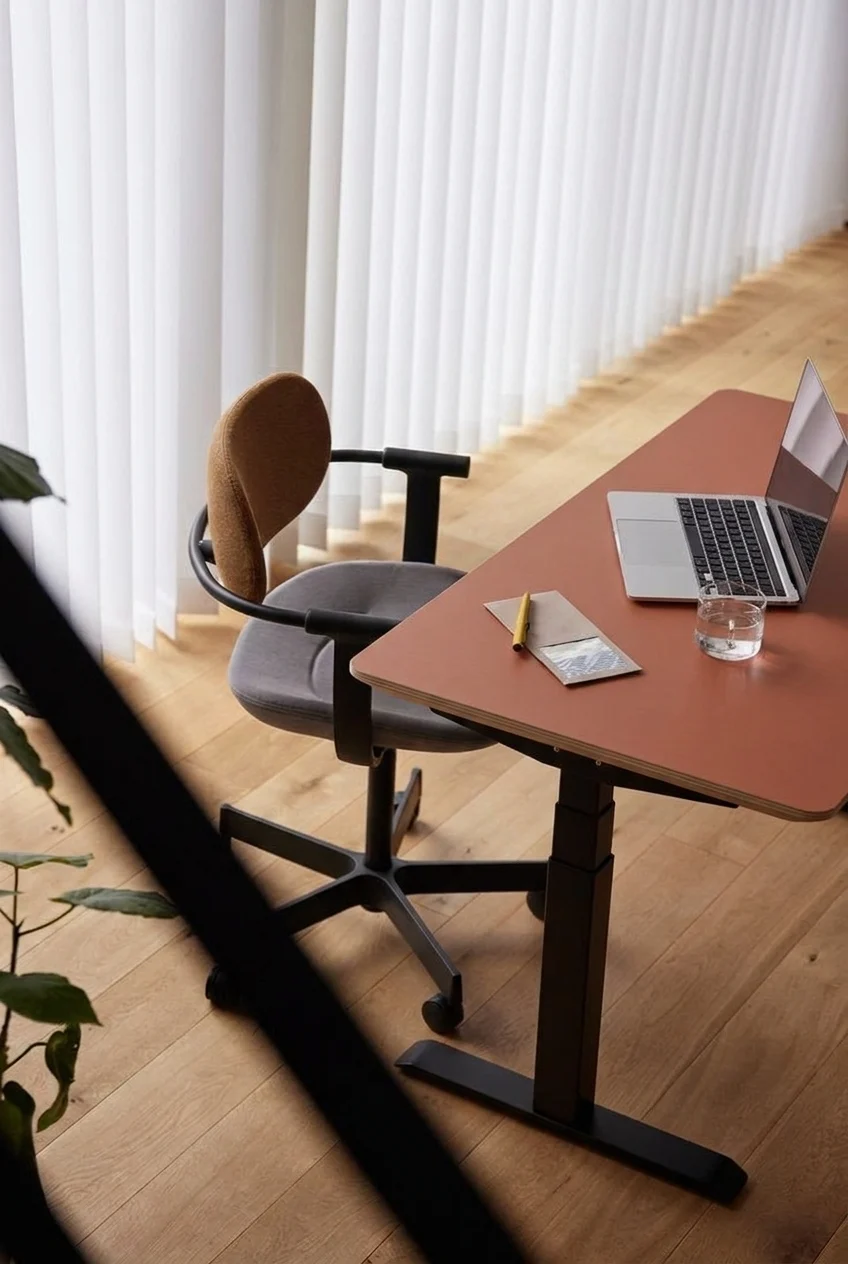
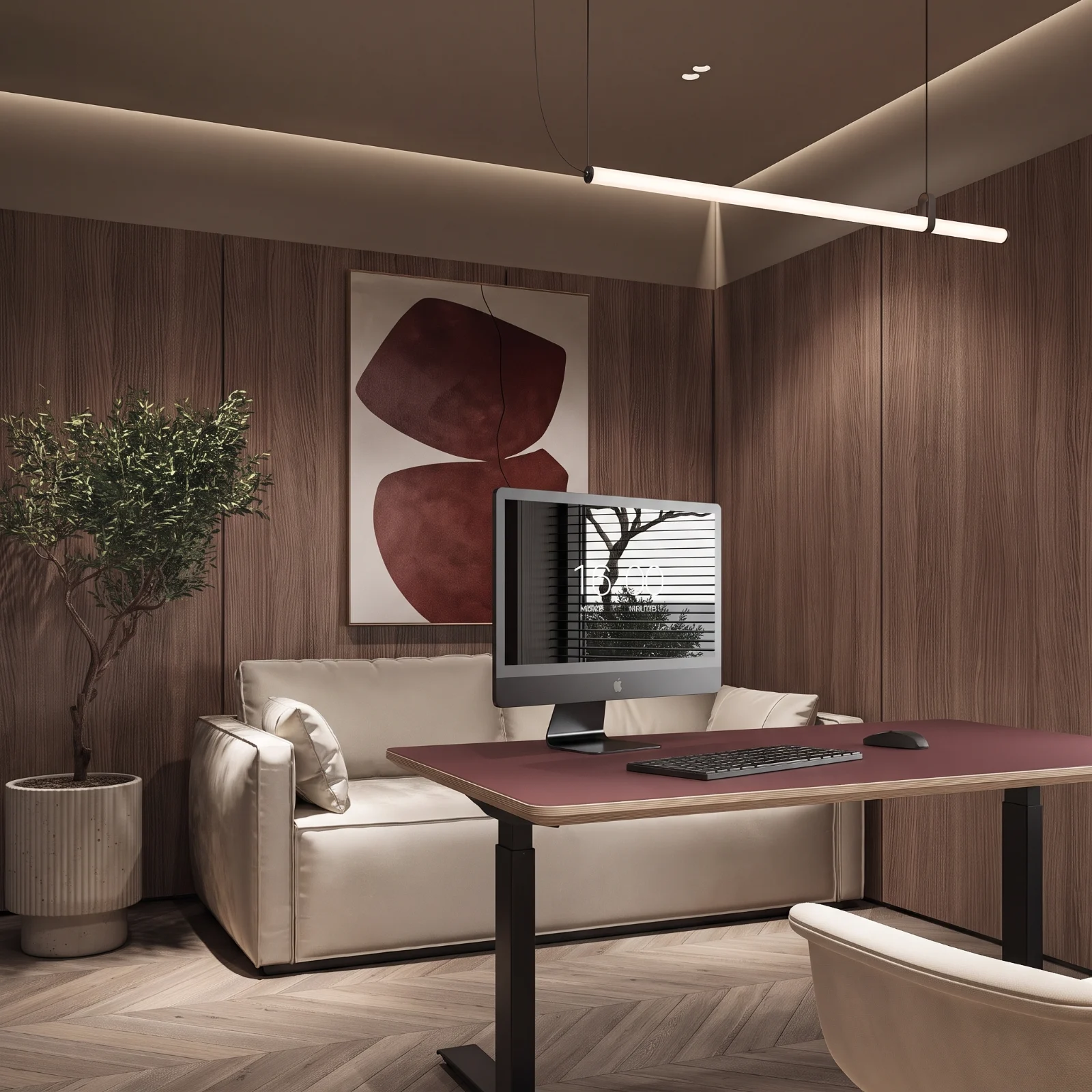
Select an image on Pinterest or cosmos.so, choose products from your own online shop, and Claro places them in the scene. Without leaving your browser.
Extension for Chrome on desktop
Pinterest and cosmos.so
Paid per image
In beta
The difference
Claro lives in Chrome
Claro lives in Chrome: see, select, generate, and another variant, without switching tools.
See
Select
Generate
Another variant
26 s
That is how fast a real 1K image was ready in our smoke test of 21 November 2026. Not every image is that fast: of 93 images at 1K, the median took 48 seconds.
Before Generate
the AI points out what will be replaced in the image: a red frame with a label. In our test that took 2 to 5 seconds.
€0.20
per 1K image, excluding VAT. The price is on the button before you click; you only pay for an image that is delivered.
No saving images, no uploading, no other app. The image you see is the image you carry on with.
How Claro works, in your own Chrome
Scroll along, from an image on cosmos.so to an edited result. The window is a mock-up; the images, frames and texts come from the app.
cosmos.soMy online shop
←→↻cosmos.so/e/554842542
SelectSelected
1 image selectedClearPlace my product
Source image · cosmos.soResult · 1KYour image · 2KAI is looking…shaker bekerWorking on your image
Another variant of the same image, with the same product.
Edit the image
FrameLassoBrushEraserverwijder deze lamp.Size1K2K4K✦ Edit · €0.30Done
01
You browse as usual
On Pinterest or cosmos.so, in your own Chrome. Claro sits in your browser as an extension and waits until you see something that fits your brand.
02
Select the image
Hover over an image and a yellow check mark appears. One click, and the image is in the bar at the bottom. Claro only takes the image you select.
03
Place my product
The window opens over the page: the image on the left, your products on the right. You stay on the same page, in the same tab.
04
Choose your product, the AI points
Choose one to three products from your own online shop. Even before you click Generate, the AI points out what will be replaced: a red frame with a label. Here that is the shaker.
05
Generate, and once more
The price is on the button: €0.20 for a 1K image. The result appears in the same window. Want a different version? Click Again.
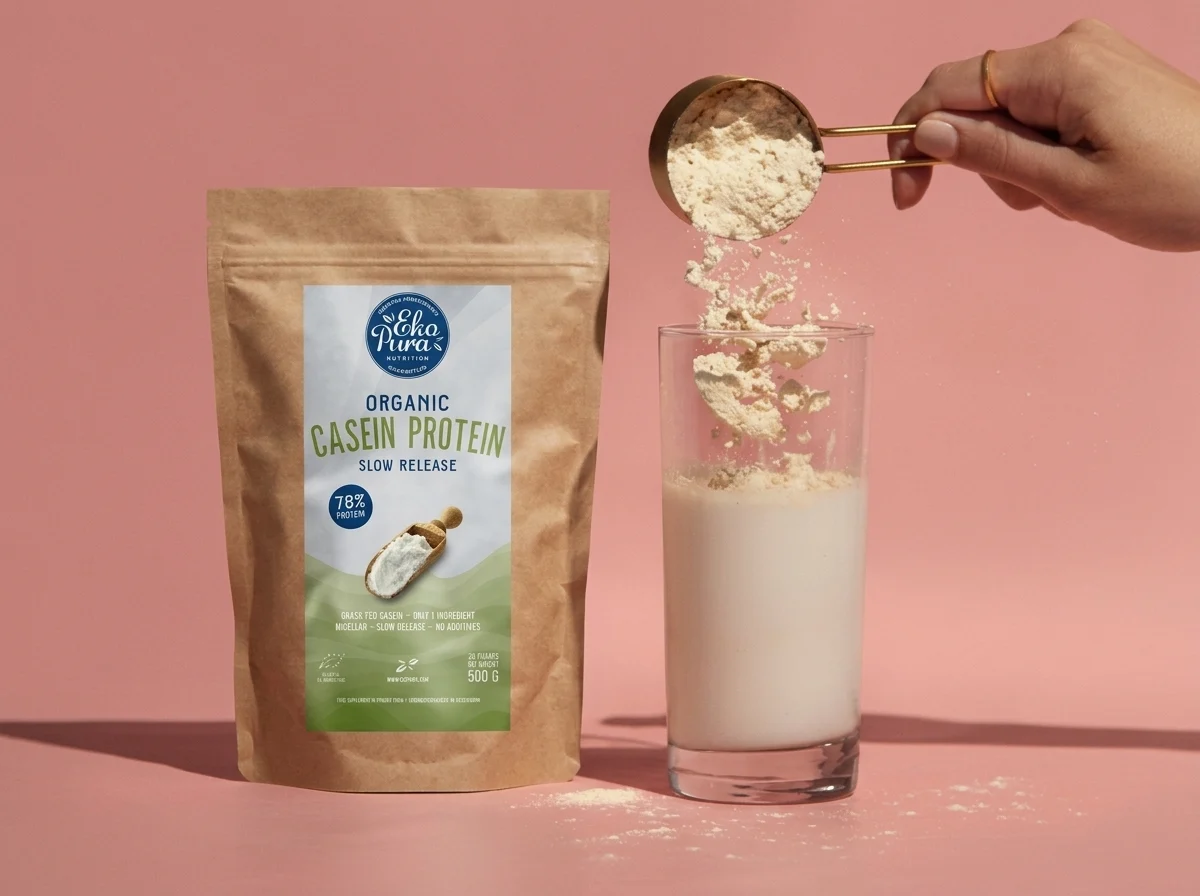
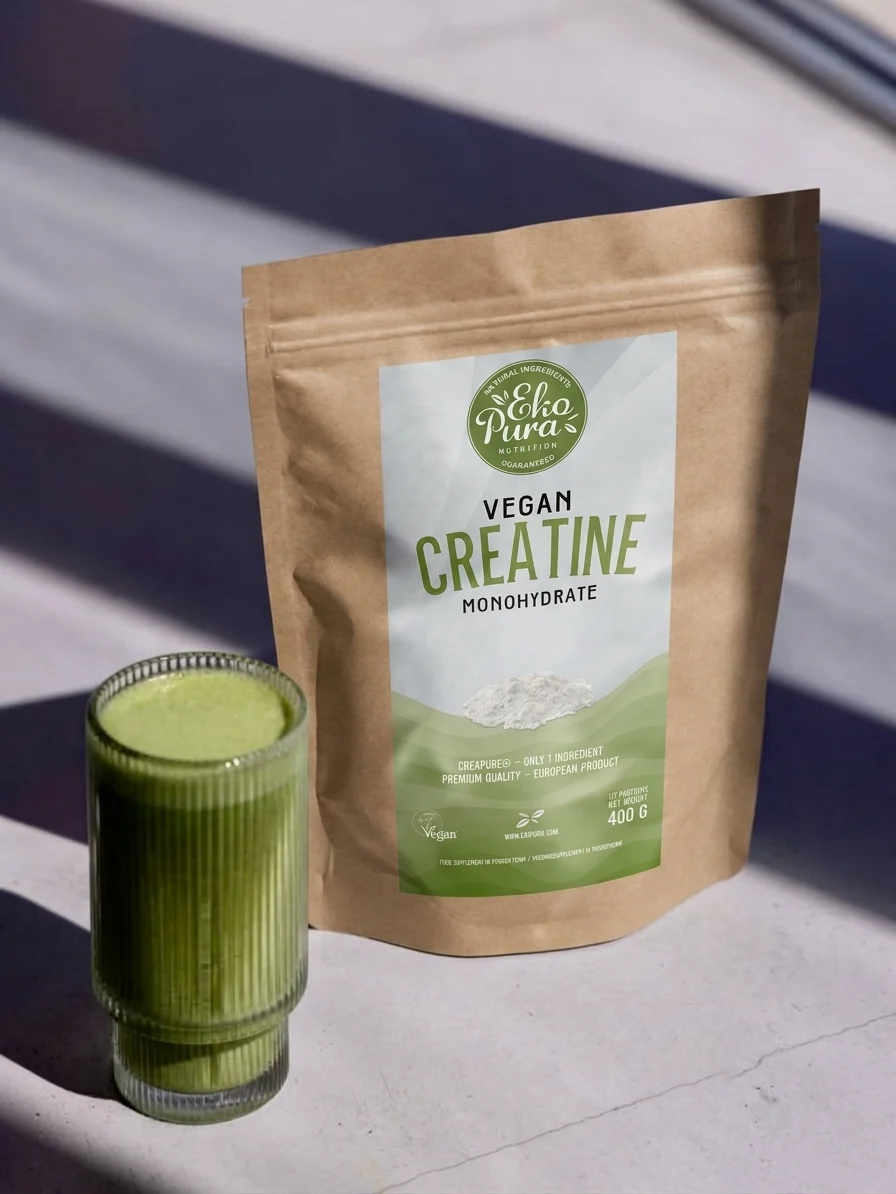
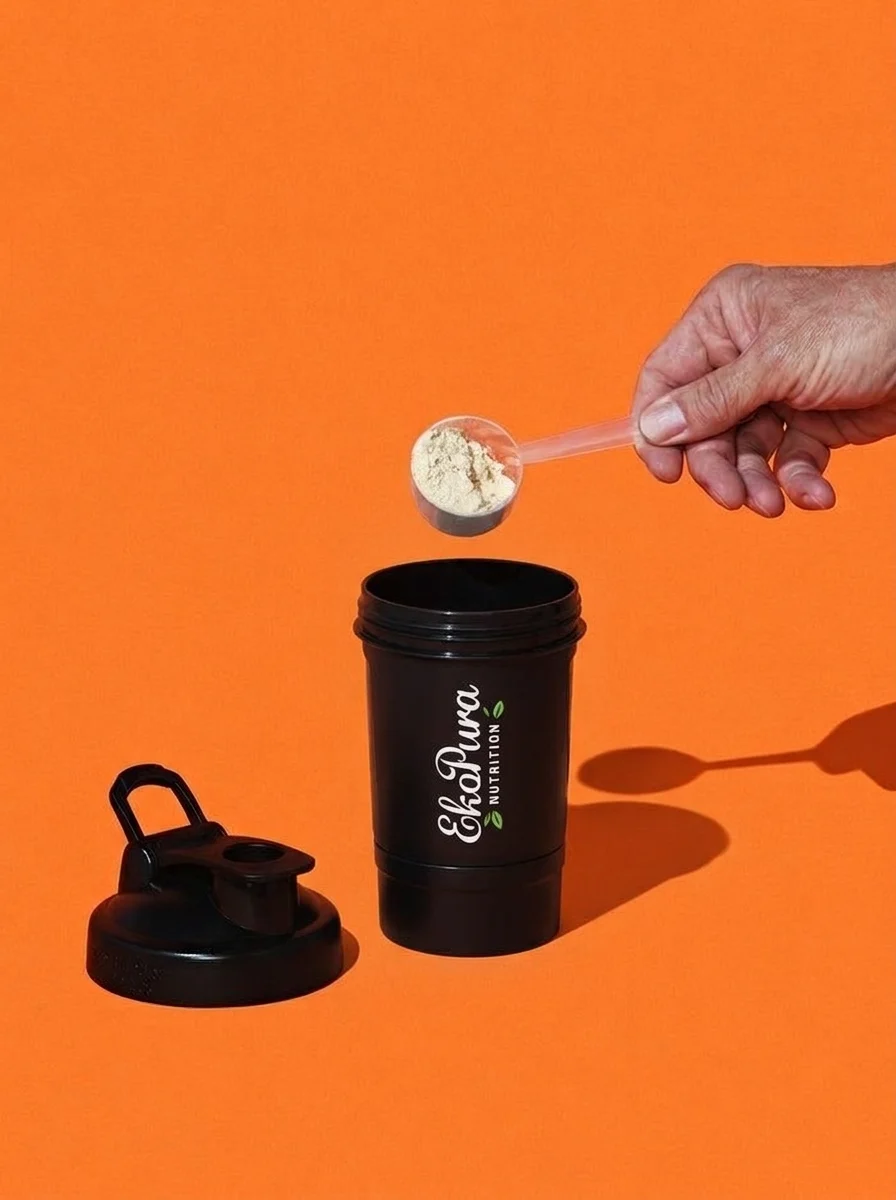
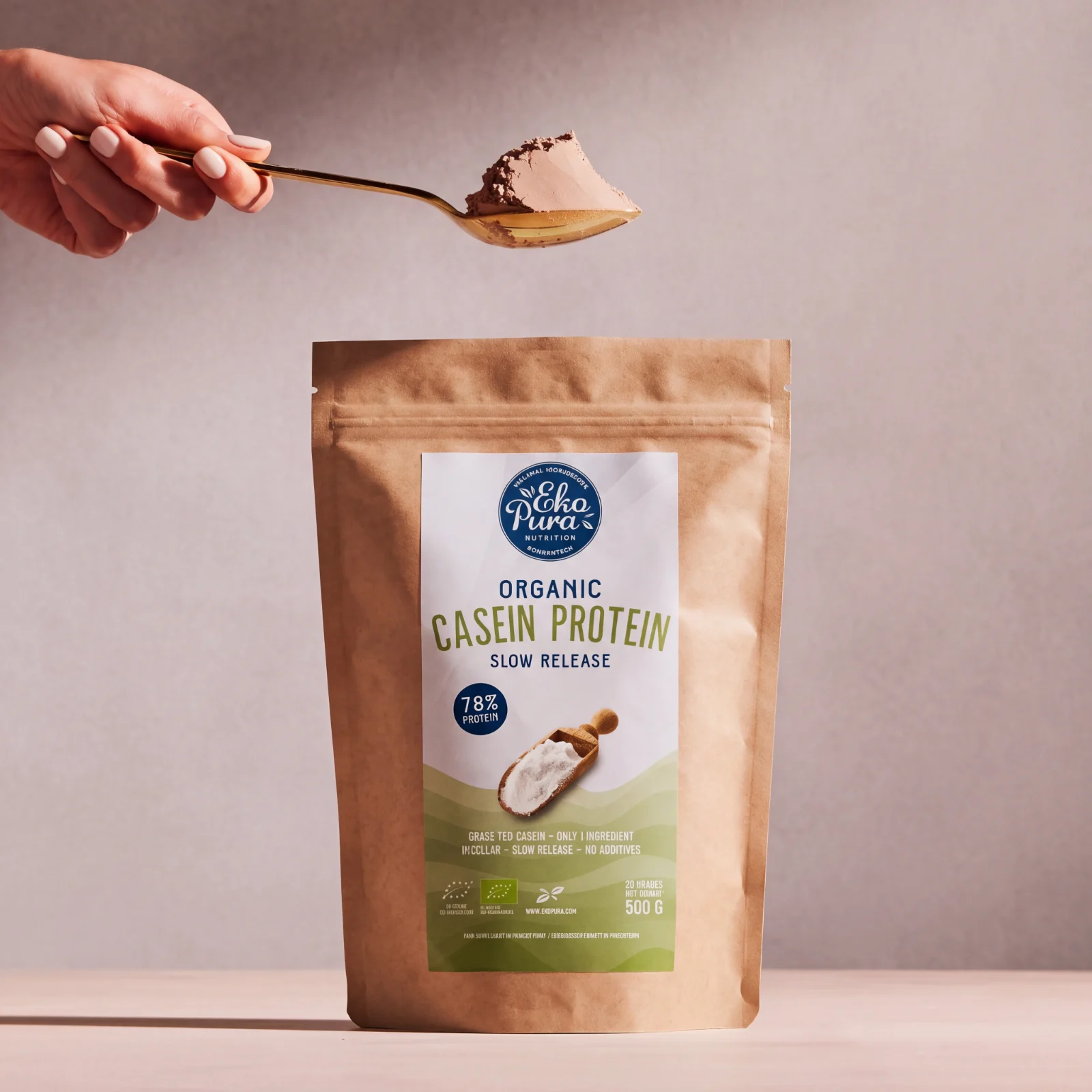
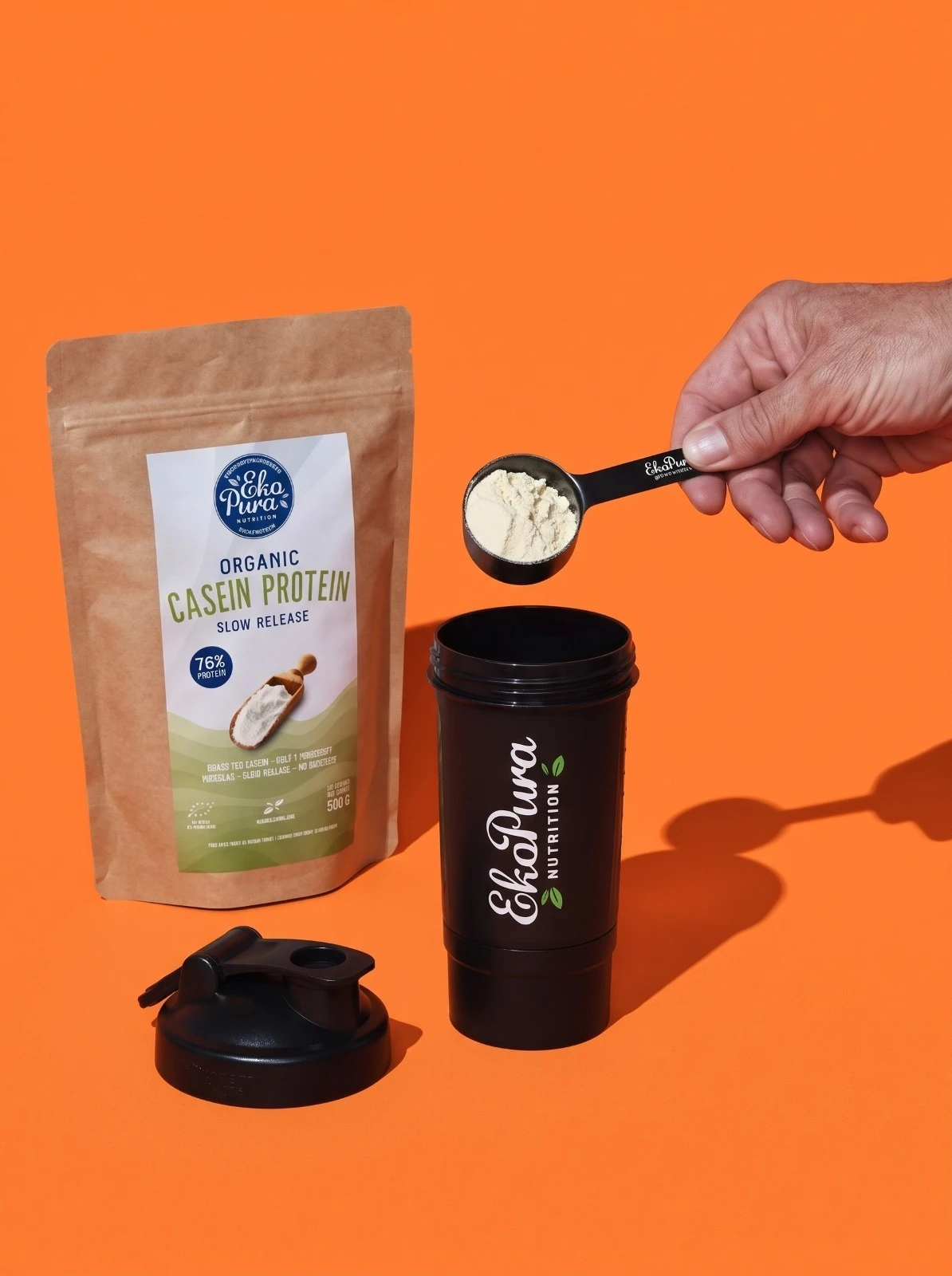
This result is real: the Ekopura shaker on the image from cosmos.so, 1K, 20 November 2026.
06
Edit what isn't right
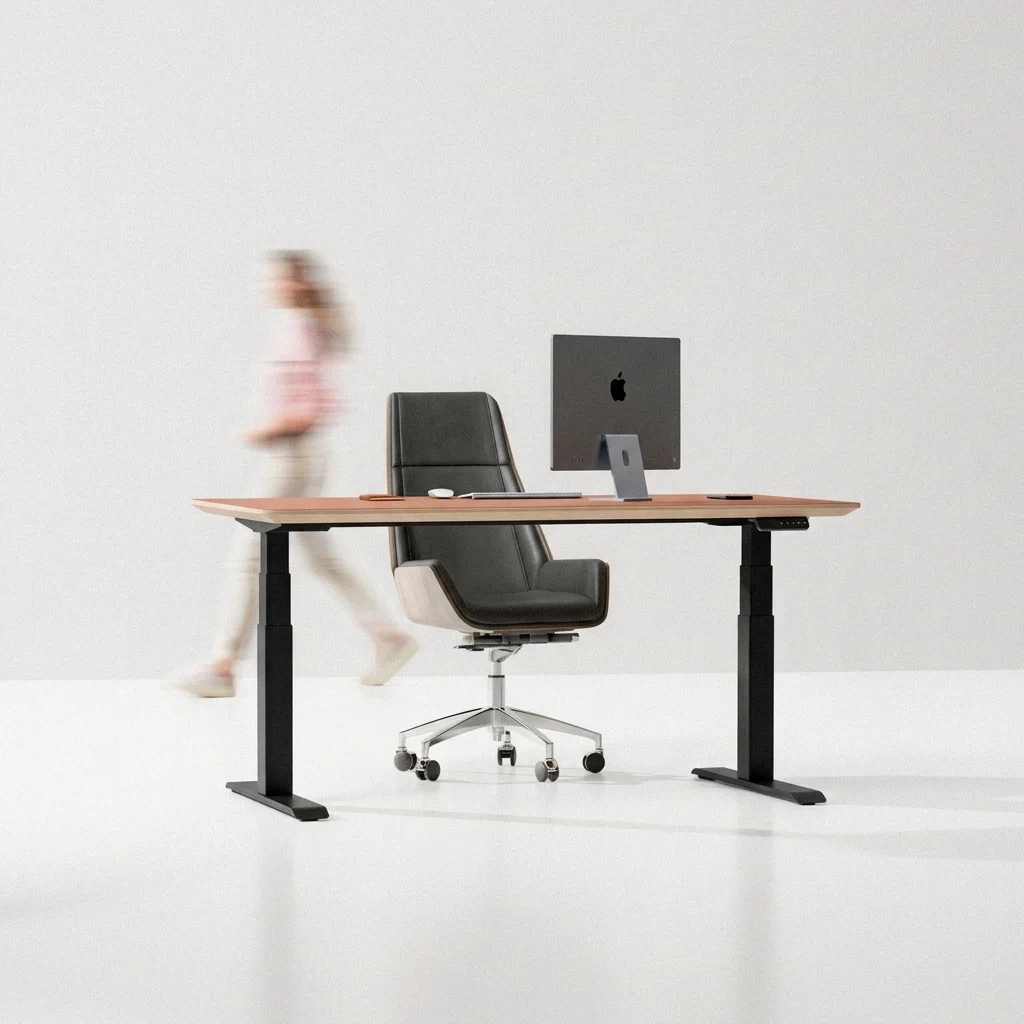
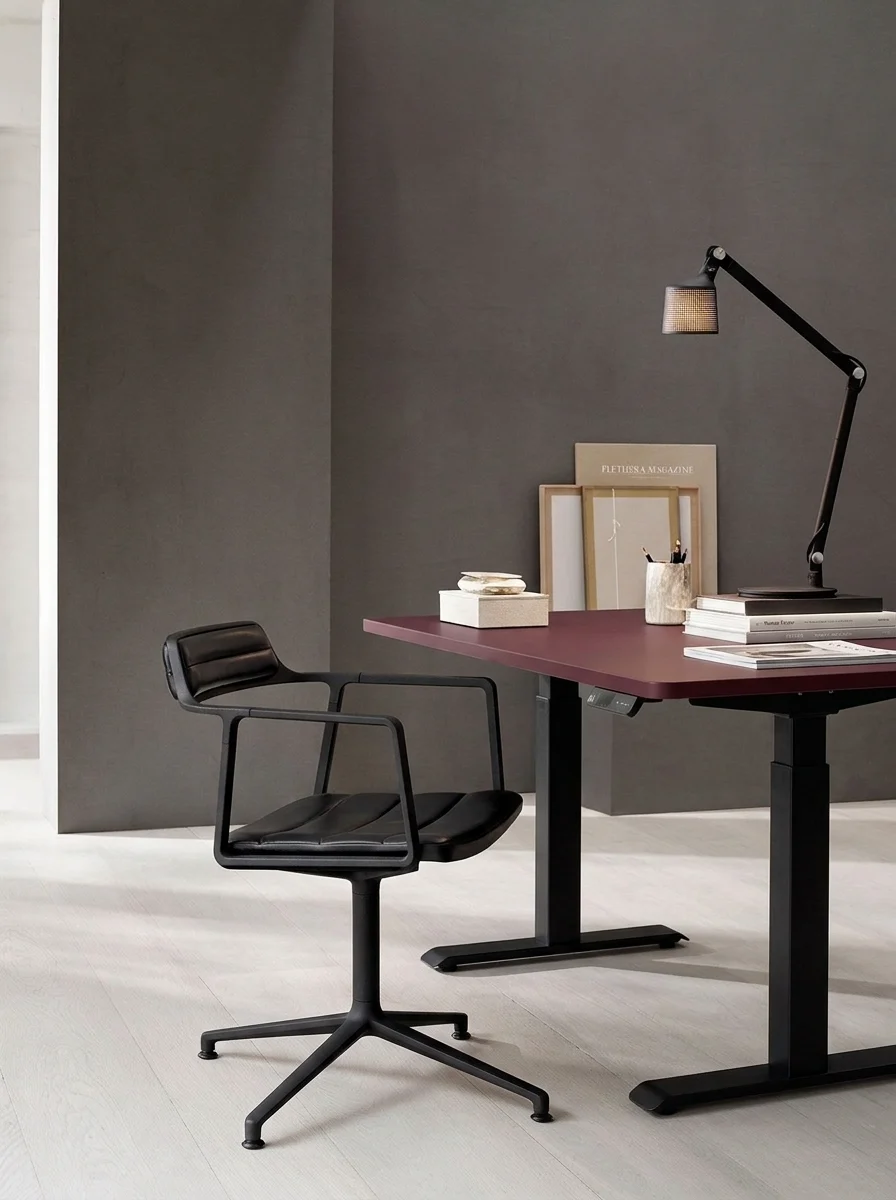
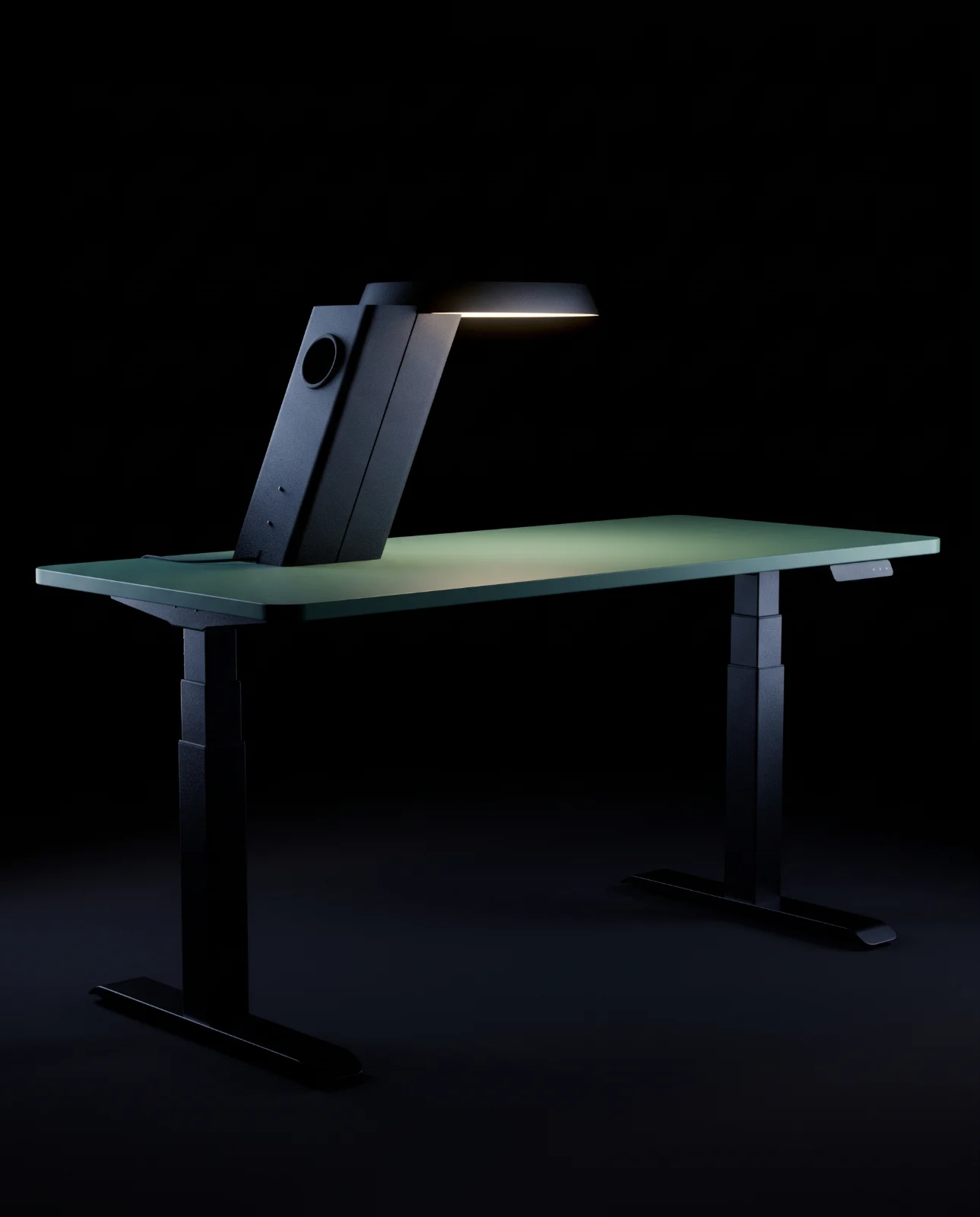
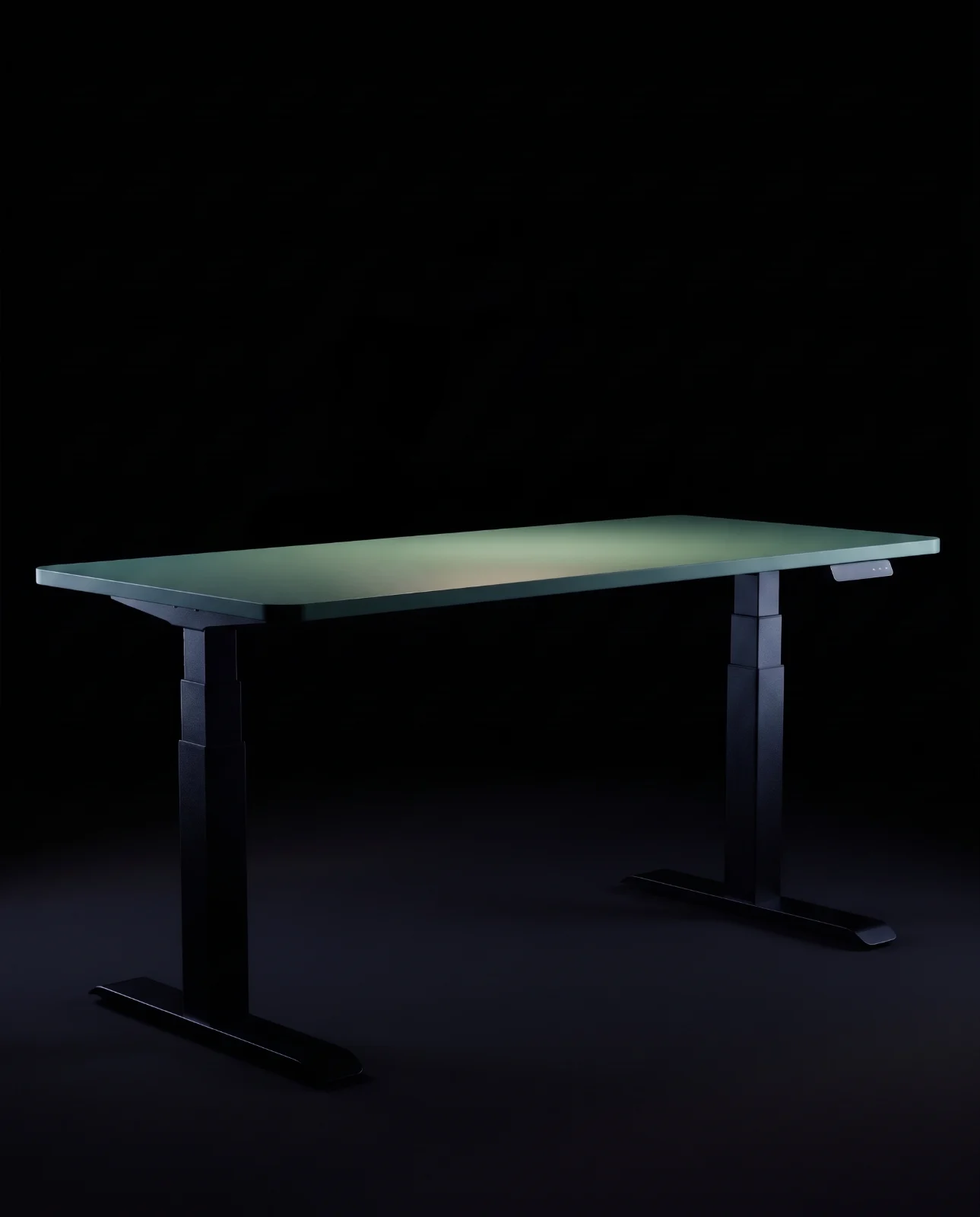
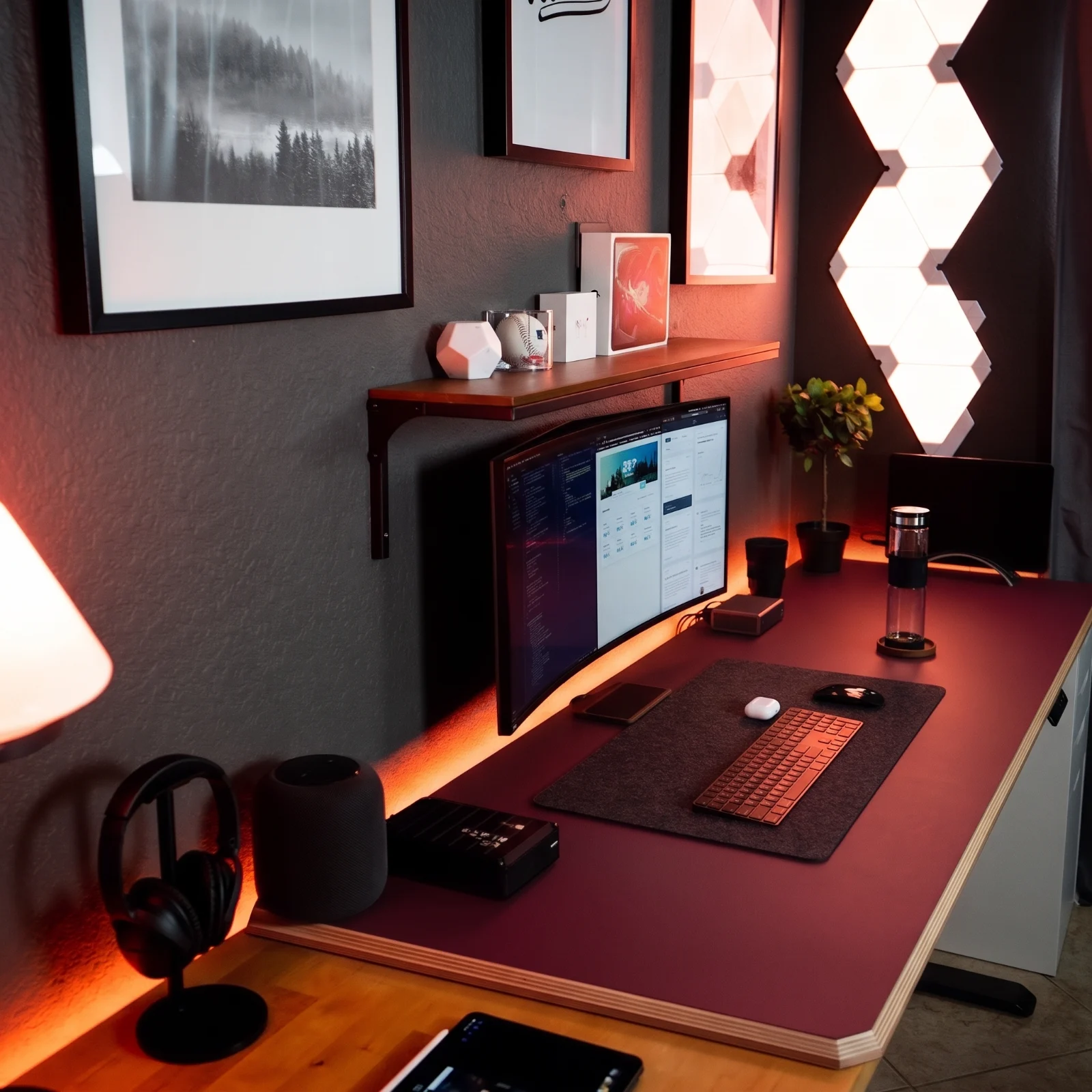
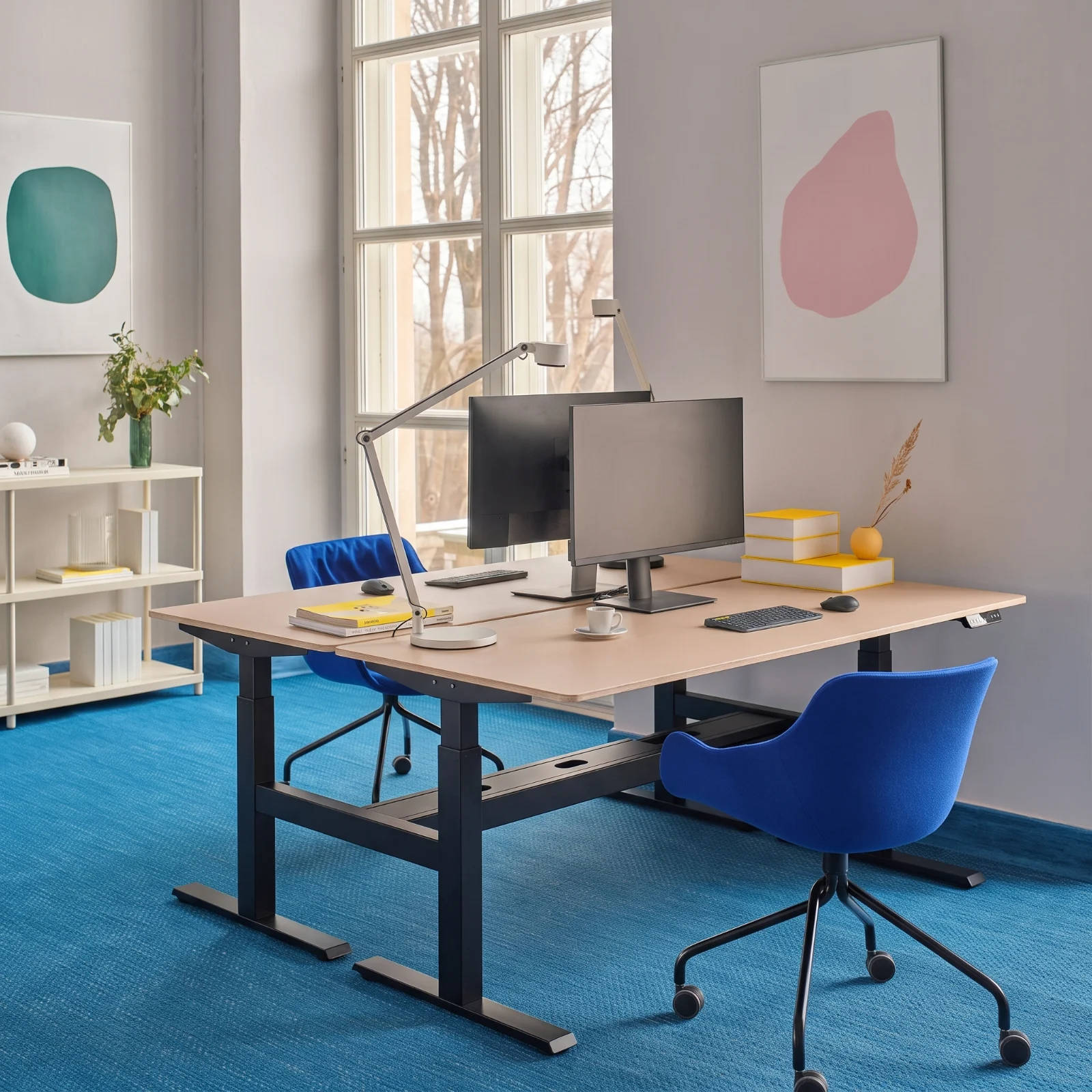
Mark what needs to change with a frame, lasso or brush, and say it in plain words. Here, with a Stadesk desk: "verwijder deze lamp." (Dutch for "remove this lamp."). An edit is a new image, at the price of that size (2K: €0.30).
From spotted to placed
A real example from the app: one image from cosmos.so, products from Ekopura, one click.
1Spotted
Spotted on Pinterest or cosmos.so
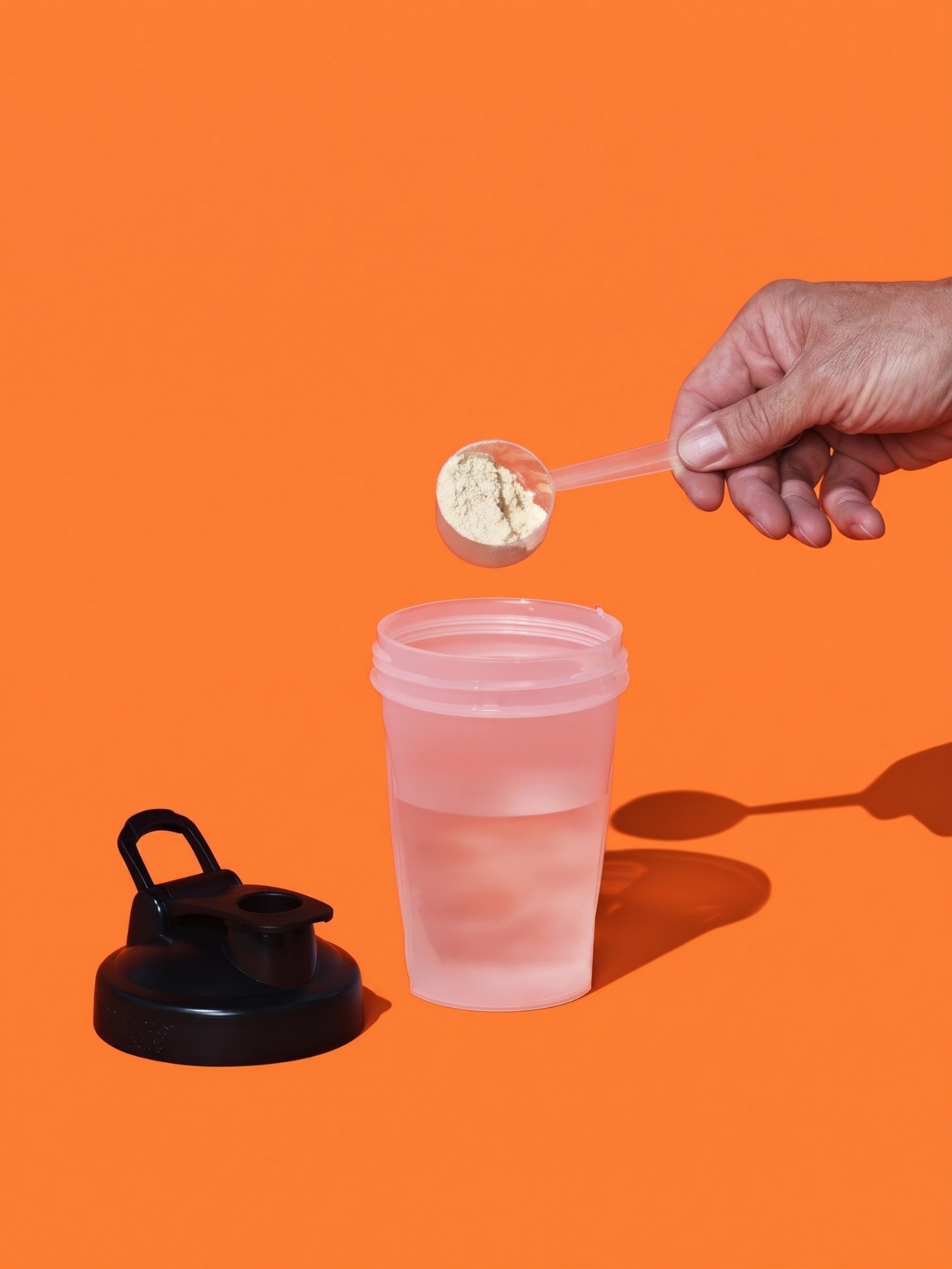
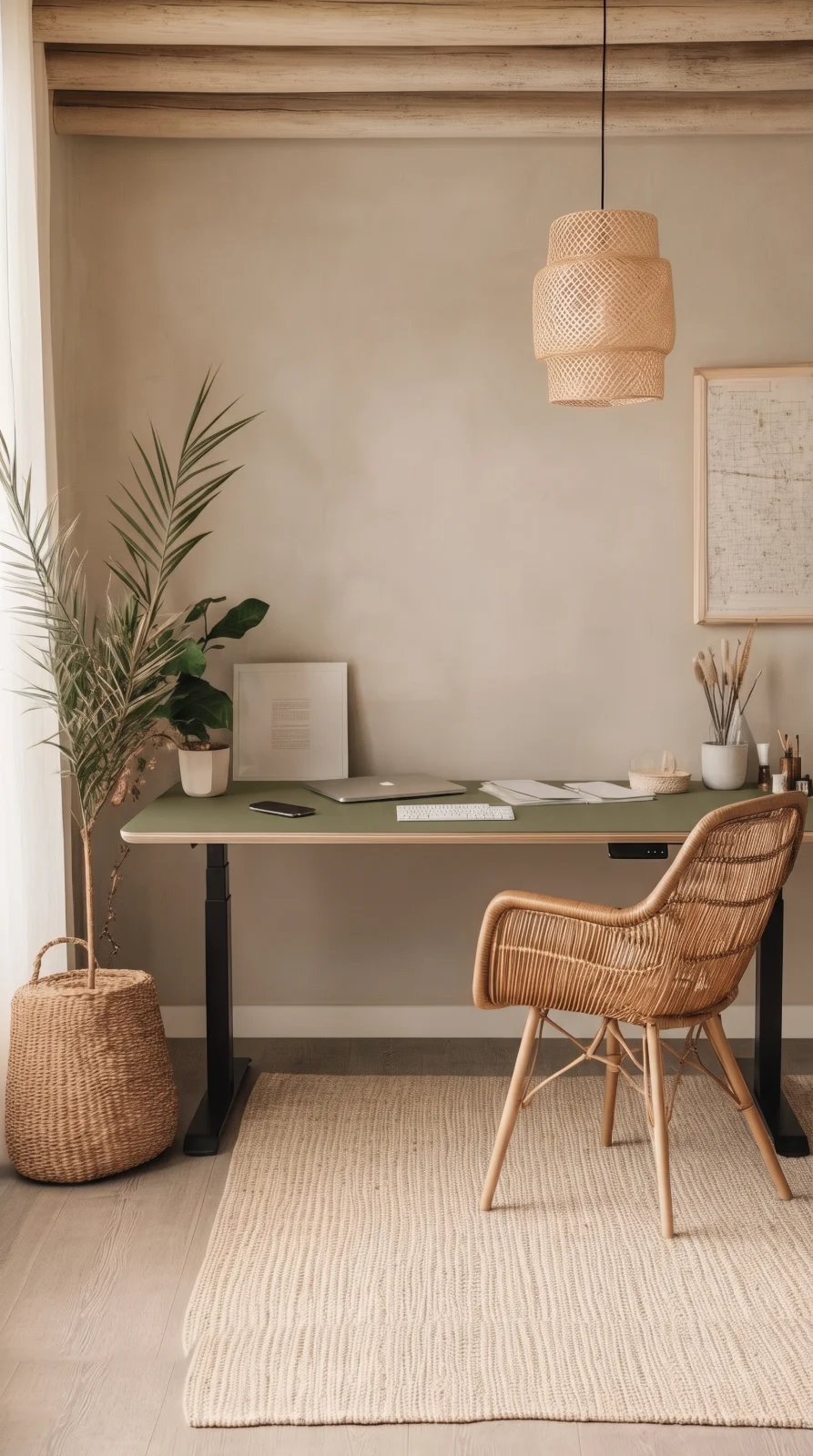
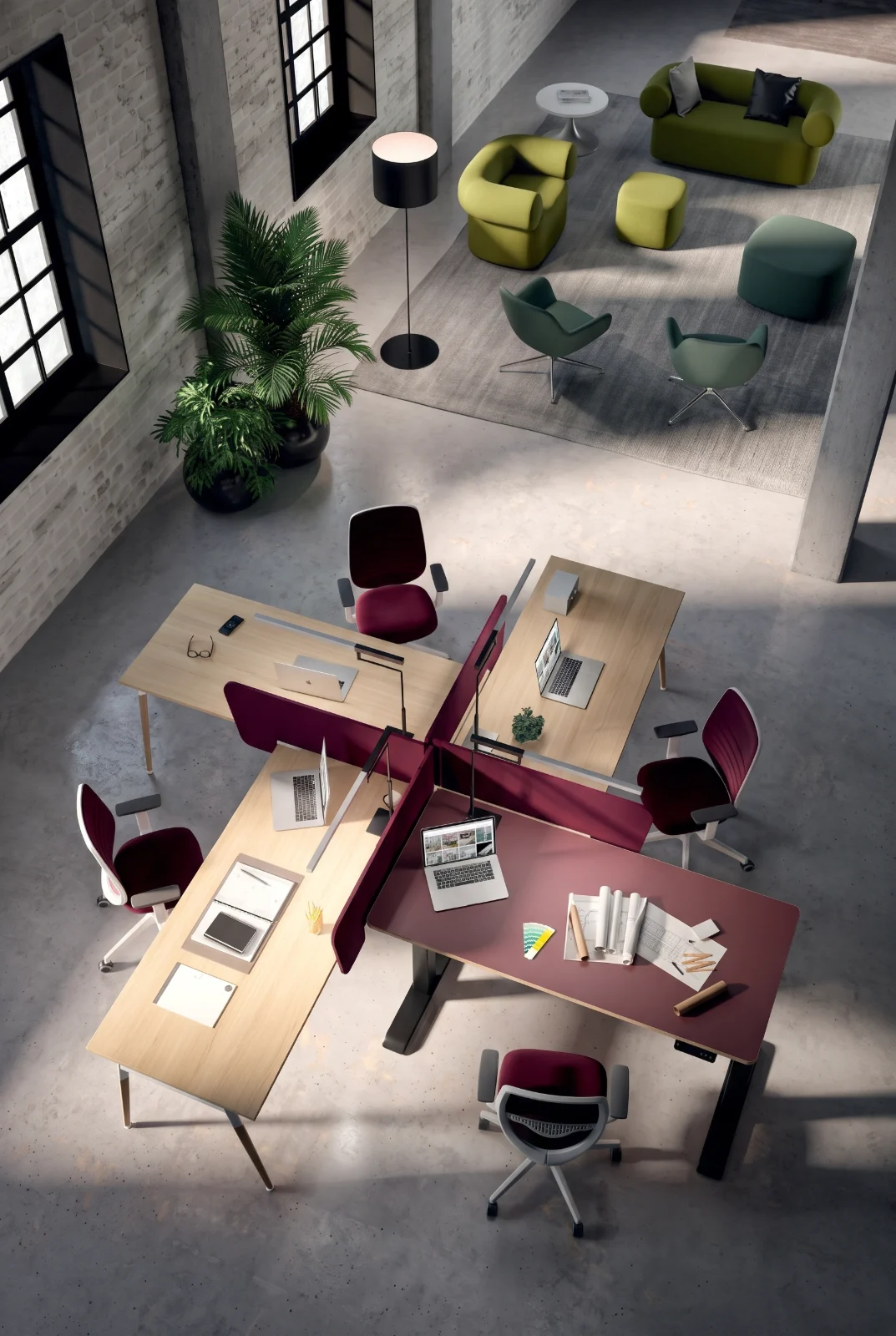
You see an image that fits your brand. We found this one on cosmos.so.
Hover over the image, select it and choose "Place my product". Claro only takes the image you select.
2Your products
Your products, read from your online shop
The app read them beforehand from Ekopura's shop: name, type, photos and the shop text. From that it wrote a description for the image model. The shop is Dutch, so the shop text is too.
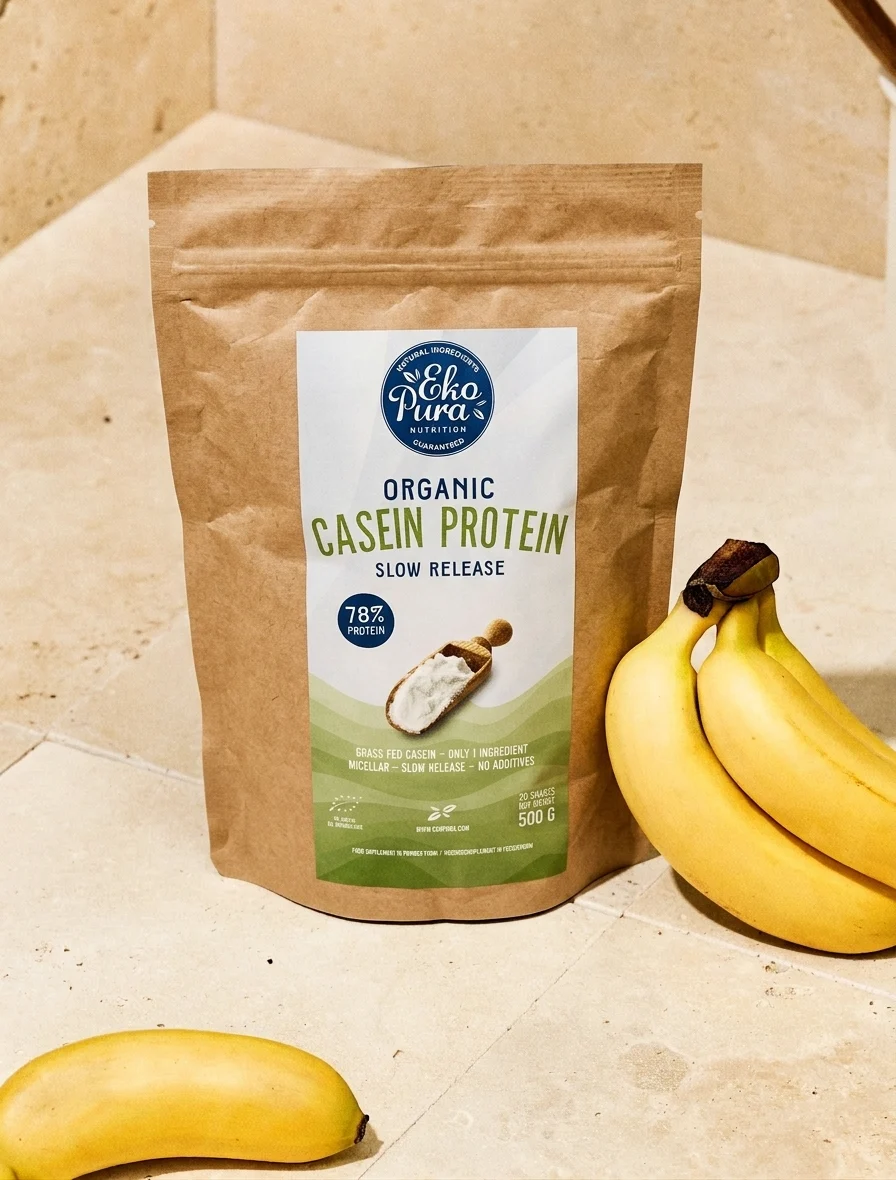
Ekopura Organic Casein – Purely Natural is een biologisch caseïne eiwitpoeder met een eiwitgehalte van maar liefst 78%. Deze micellaire caseïne staat bekend om zijn langzame en geleidelijke eiwitafgifte…
Description for the image model
A brown paper pouch of protein powder featuring a white label with blue and green text, a brand logo at the top, and an image of a wooden scoop filled with white powder.
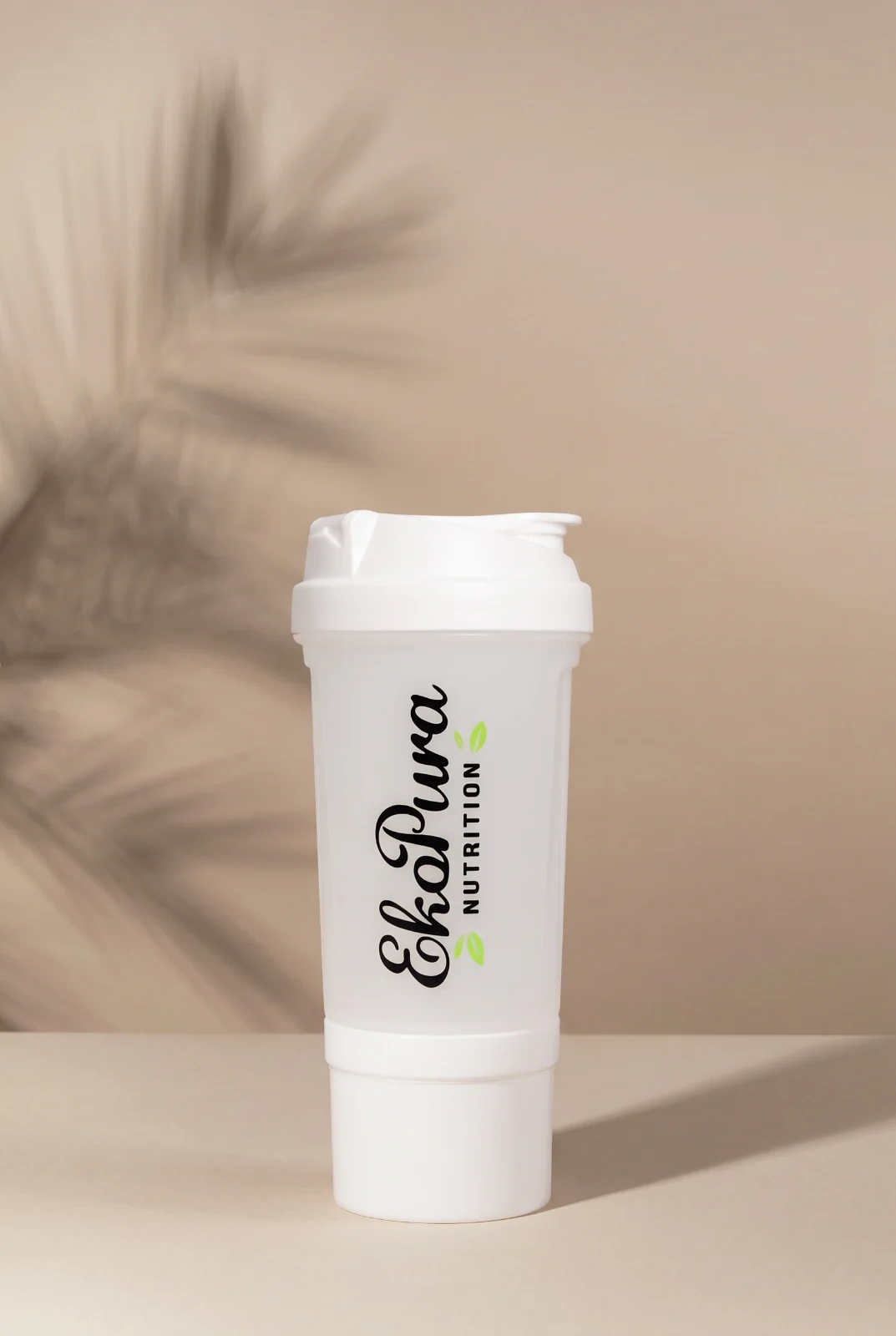
A black 500ml plastic shaker bottle with a capacity of 500ml, featuring a secure lid, a mixing mechanism, and an additional compartment at the bottom for supplements or powder.
3The result
The result
@Caseïne Bio@Shakebeker 500mlin this image
Made in the app on 20 November 2026 · 2K · one image. The price per image is under Pricing.
Generated with AI. Small text on packaging is not always right: this pouch says 76% instead of 78%, and a few lines are illegible. Check every image before you use it.
How it works, exactly
What Claro does when you click, what you can choose, and what happens to your data.
01
Connect your shop
In the settings, you enter the web address of your online shop. Claro reads in your products and their photos, and the AI writes a description of each product for the image model. You review and adjust it; a product without a description can't be chosen.
Tested with shops on Shopify. With other online shops, reading in doesn't always work.
02
The AI points out what will be replaced
When you choose a product under "Edit this image", the AI first looks at what that product replaces in the image. A red frame with a label appears there, before you pay anything. In our test with Stadesk desks that took 2 to 5 seconds per image.
If pointing fails, you can still generate; the AI then picks the spot itself.
shaker beker
03
One to three products
Put up to three products together in one image, such as a pouch of protein powder and a shaker. Click a product again to remove it.
04
Size and format
1K, 2K or 4K: 1K is the smallest size, 4K the largest. The aspect ratio is "As source", or fixed: 1:1 for a product page, 4:5 portrait, or 9:16 for a story or reel.
1K2K4KAs source1:14:59:16
05
This image, or a new scene
With "Edit this image", the model places your product in the image you selected. With "New scene in this style", it creates a new space in the mood of that image. Per click you make one, two or four variants; each variant is an image.
06
Editing
Mark what needs to change with a frame, lasso or brush, erase what is too much, and describe the change. Only that part changes; the rest stays as close to how it was as possible.
An edit is a new image, at the price of that size.
07
What happens to your data
The extension doesn't collect browsing behaviour. Only when you choose an image and a product in the window does it send the address of that image and of the page to Claro. Claro fetches the image and sends it with your product details to Google: first to point out what will be replaced, then to make the image.
Point out what needs to change and describe it in plain words. Only that part changes; the rest stays as close to how it was as possible.
Before
After
A real edit from the app, 21 November 2026, 2K. The desk is Stadesk's Saragossa.
Edit the image
Frame Drag a rectangle over what needs to change.
Lasso Draw a line around what needs to change; the shape closes by itself.
Brush Paint over what needs to change.
Eraser Erase what you marked too much.
1K2K4K
verwijder deze lamp.
An edit is a new image, at the price of a regular image of that size. You see the price before you click.
Everything we've made with it so far
From Stadesk desks to Ekopura's protein powder and shaker: real images from the app, made from 18 to 21 November 2026 on images from cosmos.so and Pinterest. Only resized for the website.
Zit-sta bureau Olive · Stadesk · 2K
Caseïne Bio · Ekopura · 4K
Zit-sta bureau Burgundy · Stadesk · 2K
SpottedWith ClaroBefore and after · Ekopura
Duo zit-sta bureau Azzuro · Stadesk · 1K
Three products · Ekopura · 1K
Zit-sta bureau Burgundy · Stadesk · 2K
Creatine Monohydraat · Ekopura · 1K
Duo zit-sta bureau Clay · Stadesk · 2K
Shakebeker 500ml · Ekopura · 2K
Zit-sta bureau Terracotta · Stadesk · 1K
Caseïne Bio · Ekopura · 1K
Zit-sta bureau Burgundy · Stadesk · 1K
Caseïne Bio · Ekopura · 1K
Zit-sta bureau Terracotta · Stadesk · 1K
Zit-sta bureau Burgundy · Stadesk · 2K
Generated with AI. Small text on packaging is not always right; check every image before you use it.
Works where you look for inspiration
On Pinterest and cosmos.so, in Chrome on desktop. Hover over an image and select it.
Pinterestpinterest.com and pinterest.nl
cosmos.soThe images on cosmos.so
You choose every image
Claro doesn't crawl boards and only takes the image you select. One image per click.
Chrome on desktop
Claro is an extension for Chrome. It doesn't work on a phone or tablet.
Your own products
You enter the web address of your online shop. Claro fetches your products and their photos and describes them automatically; you can adjust every description. Tested with shops on Shopify; with other online shops, fetching doesn't always work.
An AI image, not a photo
The image is made by Google's image model and carries an invisible watermark from Google. The model sometimes makes mistakes: look at every image carefully before you use it.
You are responsible for the rights
You are responsible yourself for the rights to the image you select and for what you do with the result. Claro does not clear the rights to an image.
Paid per image
You pay per delivered image from credit. You see what an image costs in the window before you click.
Pricing and credit
You pay a fixed price per image, from credit you buy in advance.
Price per image, excluding VAT
Size
Edit this image
New scene in this style
1K
€0.20
€0.20
2K
€0.30
€0.30
4K
€0.60
€0.60
Price per image, excluding VAT. 1K is the smallest size, 4K the largest. With "Edit this image", the model places your product in the image you selected. With "New scene in this style", it creates a new space in the mood of that image.
These are the prices during the beta. If the price list changes, you see the new price in the window before you click.
How credit works
You buy credit in advance, in euros. Your whole workspace uses the same credit.
With every click you first see what the image costs and how much credit you have left.
The amount is only deducted from your credit once your image is ready.
If the model refuses your image, if it fails, or if the source image can't be fetched, you pay nothing.
Want a new version of an image? That is a new image at a new price.
Credit can only be used with Claro and can't be transferred.
Trial credit
At the public launch, a new shop gets credit for 5 images at 1K, once. You get it as soon as you connect your online shop and Claro finds real products in it: at least one product with a name and a photo.
Once per shop and per email address.
It is regular credit: if you make 2K or 4K images with it, you get fewer.
It doesn't apply during the beta yet: the owner of Claro sets up credit for you then.
Topping up
During the beta you can't top up yourself yet: the owner of Claro sets up credit for you.
After that, you top up yourself, in two ways:
one-off, in fixed amounts, whenever you like;
with a subscription that adds a fixed amount to your credit every month.
Both give the same credit, with the same prices per image. The amounts haven't been set yet.